Published: 2026-05-09
How to Secure Your Google & Apple ID in 2026
Lock down your Google Account and Apple ID with passkeys, 2FA, and entropy-backed passwords. A senior security dev's step-by-step guide — no fluff.
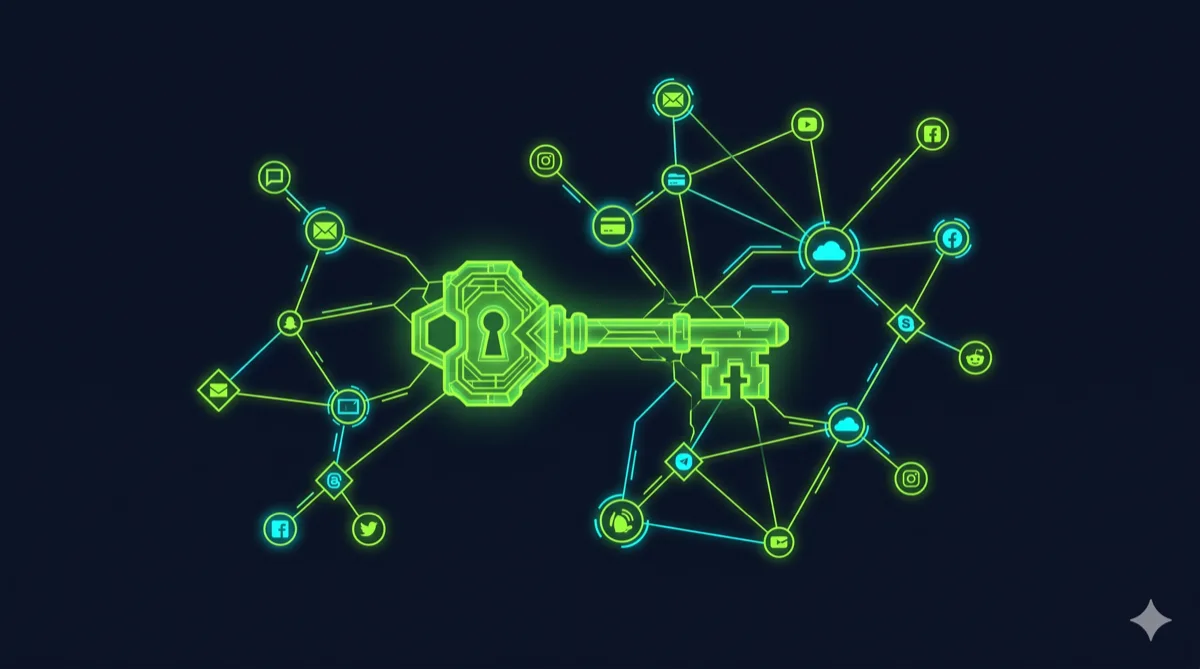
Your Google Account and Apple ID are not just email logins. They are the master key to your financial data, medical records, photos, cloud backups, and every downstream service you've connected via OAuth. Compromise one and an attacker can reset every other password in under ten minutes. Here's how to lock both down properly — with the math to back it up.
Why These Accounts Are Tier-1 Targets
Google and Apple accounts are credential-stuffing gold. A single breach exposes:
- Payment methods (Google Pay, Apple Pay, iTunes billing)
- Recovery email chains — the skeleton key for every other account
- Cloud storage with scanned IDs, tax documents, and password manager exports
- Every app you've logged into via "Sign in with Google/Apple"
The 2024 National Public Data breach exposed 2.9 billion records. Attackers test extracted credential pairs against Google and Apple daily. Default settings won't hold.
Step 1: Set a Password That Survives Offline Attack
Both platforms are vulnerable to offline cracking if their credential database ever leaks — it has happened. The entropy formula is the baseline (for a deeper dive, see The Math of Entropy: Why 12 Characters is Minimum):
$$H = L \times \log_2(R)$$
Where H = entropy in bits, L = password length, R = character pool size (charset).
| Password Type | Length | Charset (R) | Entropy (H) | RTX 4090 Crack Time (bcrypt) |
|---|---|---|---|---|
| Lowercase only | 12 | 26 | 56.4 bits | Under 1 hour (MD5) |
| Alphanumeric | 14 | 62 | 83.4 bits | Centuries |
| Full ASCII | 16 | 95 | 104.9 bits | Heat death of the universe |
| Full ASCII | 20 | 95 | 131.2 bits | Irrelevant |
RTX 4090 benchmarks for reference: 164 billion guesses/sec against MD5 hashes, 184,000 guesses/sec against bcrypt (cost 10). The gap between "16 lowercase characters" and "16 full-ASCII characters" is whether an attacker walks away in an afternoon or gives up entirely.
Minimum for Google/Apple accounts: 16+ characters, full character set, generated randomly. Your brain is a terrible CSPRNG — it gravitates toward keyboard walks, names, and patterns that dictionary rules destroy in seconds.
Use our Password Generator — Zero-Knowledge, processes everything in your browser's volatile memory via crypto.getRandomValues(). Nothing is ever transmitted to a server. Then run the output through the Password Strength Checker to verify entropy before committing it to your password manager.
Avoid tools that rely on Math.random(). Our Password Generator uses the Web Crypto API (crypto.getRandomValues()), ensuring your entropy source is as secure as your operating system's kernel.
Step 2: Choose the Right Second Factor
Not all 2FA is equal. The threat model matters: SIM-swap attacks defeat SMS codes. Real-time phishing proxies (Evilginx, Modlishka) can defeat TOTP apps by relaying the session cookie before it expires. Only hardware keys and passkeys are phishing-resistant by design.
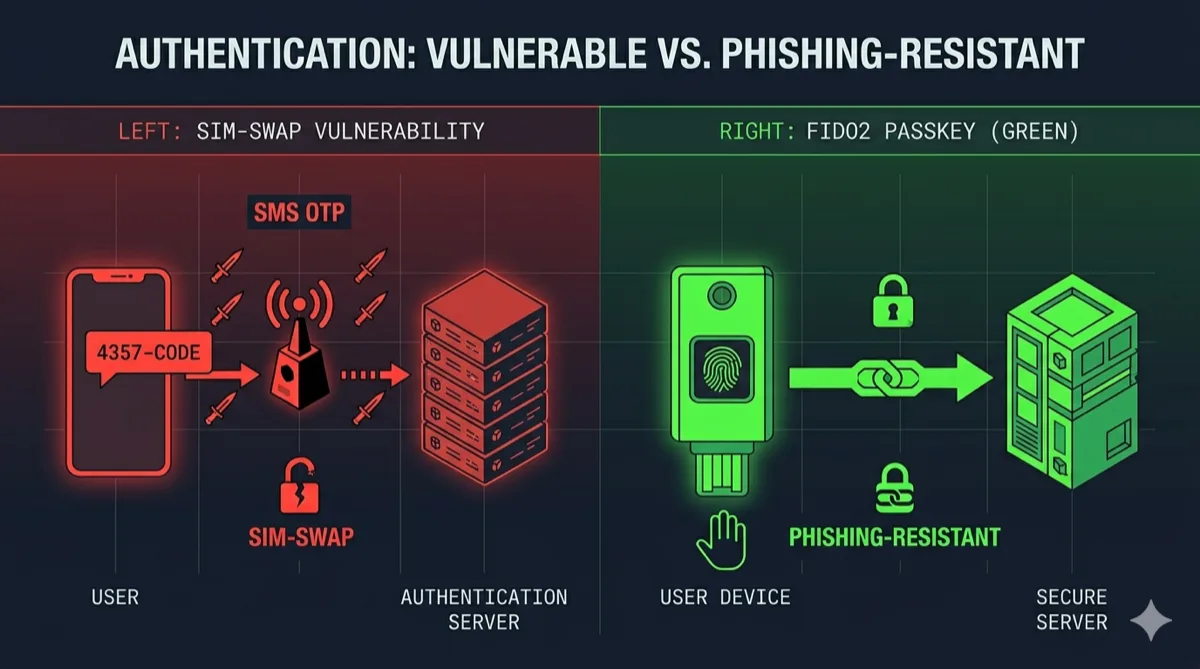
| 2FA Method | Phishing Resistant | SIM-Swap Resistant | Cost |
|---|---|---|---|
| SMS OTP | No | No | Free |
| TOTP (Authenticator app) | No | Yes | Free |
| FIDO2 hardware key (YubiKey) | Yes | Yes | ~$50 |
| Device passkey (Face ID / Touch ID) | Yes | Yes | Free |
| Backup codes (static) | N/A | Yes | Free |
Securing Google
Go to myaccount.google.com/security → 2-Step Verification. Add a passkey or hardware key as your primary method. Remove SMS as an option once a stronger method is active — SMS is a liability, not a backup.
Google's Advanced Protection Program is worth enabling if you're a journalist, executive, or anyone with realistic targeted-attack risk. It requires a hardware key and blocks almost all third-party app access. Enroll at g.co/advancedprotection.
Securing Apple ID
Apple 2FA uses trusted devices — not SMS by default, but SMS remains the fallback on new enrollments. Go to Settings → Your Name → Password & Security → Two-Factor Authentication. Verify your trusted phone numbers are accurate and the SIM is in your physical possession.
Advanced Data Protection (Settings → iCloud → Advanced Data Protection) enables end-to-end encryption for iCloud Backup, Photos, Notes, and more. Without it, Apple holds the encryption keys and can hand them to third parties. With it, only your trusted devices decrypt. Enable it.
Step 3: Audit Your Recovery Options
Recovery options are the backdoor attackers use once your first factor is hardened. Check both accounts for:
- Recovery email — does it have its own strong password and 2FA?
- Recovery phone — is the SIM active and in your possession right now?
- Trusted devices — remove every old phone, tablet, or laptop you no longer own
For Google: myaccount.google.com/recovery
For Apple: Settings → Your Name → scroll down for the full device list
Remove anything you don't recognize. An old phone you sold without signing out still appears here and can receive 2FA prompts.
Step 4: Check for Existing Compromises
Harden the account, then verify it hasn't already been accessed.
Google: myaccount.google.com/device-activity — every device that touched your account in the last 28 days with location and browser. Also check passwords.google.com/checkup for credentials Google has already flagged as compromised.
Apple: Settings → Your Name → scroll for device list. Review recent locations in Privacy & Security → Location Services → System Services → Significant Locations.
Cross-reference your email at haveibeenpwned.com. If it appears in a breach, that password is burned — rotate it immediately regardless of uniqueness claims.
Step 5: Revoke Third-Party App Access
"Sign in with Google/Apple" creates OAuth tokens that survive password changes. An app connected five years ago likely still has access.
Google: myaccount.google.com/permissions — revoke anything you don't actively recognize or use.
Apple: Settings → Your Name → Password & Security → Apps Using Apple ID — remove stale authorizations.
Token theft via compromised third-party OAuth clients is a growing attack vector. More connected apps equals a larger attack surface. Trim it quarterly.
Step 6: Break Circular Recovery Chains
Your Google Account's recovery email should not be another Gmail address. Your Apple ID's recovery phone should not be the same number tied to your SMS-based banking. Circular chains — where account A recovers account B which recovers account A — are an attacker's jackpot.
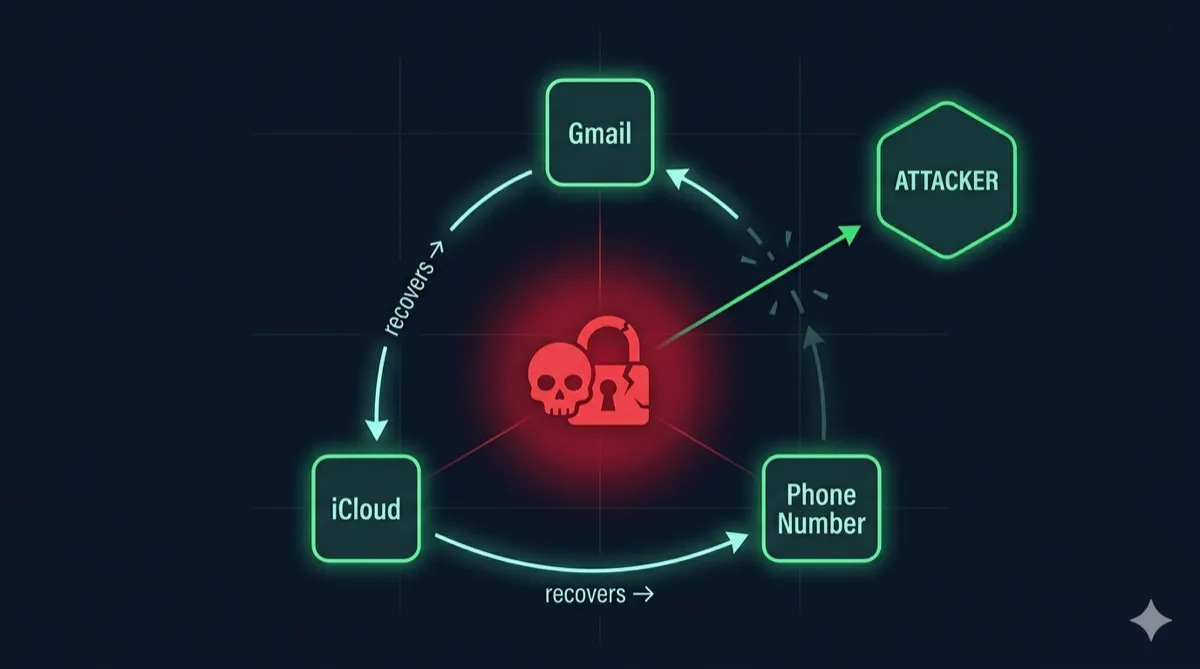
Recommended recovery structure:
- One dedicated recovery email at a separate provider (Proton, Fastmail) with its own FIDO2 key
- One printed backup code set stored physically, offline
- Zero SMS-only recovery paths for any Tier-1 account
This setup means a full account takeover requires physical access to something you own — not just a phone number that can be ported in 15 minutes.
Step 7: Monitor for Account Activity Changes
Both platforms send alerts for new sign-ins by default. Don't dismiss them.
Google Critical Security Alerts — delivered to all recovery methods simultaneously. If you receive one you didn't trigger, treat it as an active incident. Go immediately to myaccount.google.com/device-activity → Sign out all devices, then rotate your password.
Apple Security Emails — sent to your Apple ID email when a new device signs in. Same rule: unexpected alert = incident response, not spam.
Enable login notifications for every email, banking, and social account downstream. Your Google and Apple IDs are the root — protect the root.
🛡️ Security Checkpoint — Complete This Step
If your Google or Apple password was not randomly generated, it's vulnerable to dictionary attacks regardless of its apparent complexity. Rotate it now.
- → Generate a 16+ character password with full charset — Web Crypto API entropy, zero data transmitted
- → Verify your current password's entropy score — confirm it clears 80 bits before keeping it
- → Generate a cryptographic hash for backup code verification — HMAC-SHA256 for offline backup integrity checks
Frequently Asked Questions
What's the single most important step to secure a Google Account?
Enable a FIDO2 hardware key or passkey as your second factor. A passkey credential is cryptographically bound to the origin domain — a phishing page at g00gle.com gets nothing because the domain doesn't match. SMS 2FA provides none of that protection.
Can my Apple ID be hacked even with 2FA enabled?
Yes, if SMS is still in the loop. SIM-swap attacks redirect your phone number to an attacker's SIM — they then receive your one-time codes verbatim. Switch to trusted-device verification and enable Advanced Data Protection so Apple itself can't access your iCloud data on a government request.
How strong does my Google or Apple account password need to be?
Minimum 16 characters from the full ASCII charset. That's 104.9 bits of entropy — beyond the reach of an RTX 4090 running bcrypt for any practical timescale. Below 80 bits, a well-resourced attacker finishes in hours against a leaked MD5 hash.
Does changing my password protect me if my account was already breached?
Partially. It invalidates the stolen credential, but active sessions and OAuth tokens may persist. After rotating the password, sign out all other sessions — Google Security → Manage all devices; Apple Settings → Your Name → tap each device → Remove from Account — then revoke all third-party app permissions.
What is Google's Advanced Protection Program?
Google's maximum-security account mode. It requires a hardware key for every sign-in and blocks third-party app access entirely. Designed for journalists, executives, and high-risk users. The tradeoff: most third-party Gmail clients stop working. Enroll at g.co/advancedprotection if you have a realistic targeted-attack threat model.